QR code business card: how to create one people actually scan
By Everintro · · 6 minute read
The short answerUse a QR code that opens a link to your card, not one with your details packed inside it. A link code is simpler, scans faster and never goes out of date. Print it at least 2 cm wide, dark on light, with clear space around it.
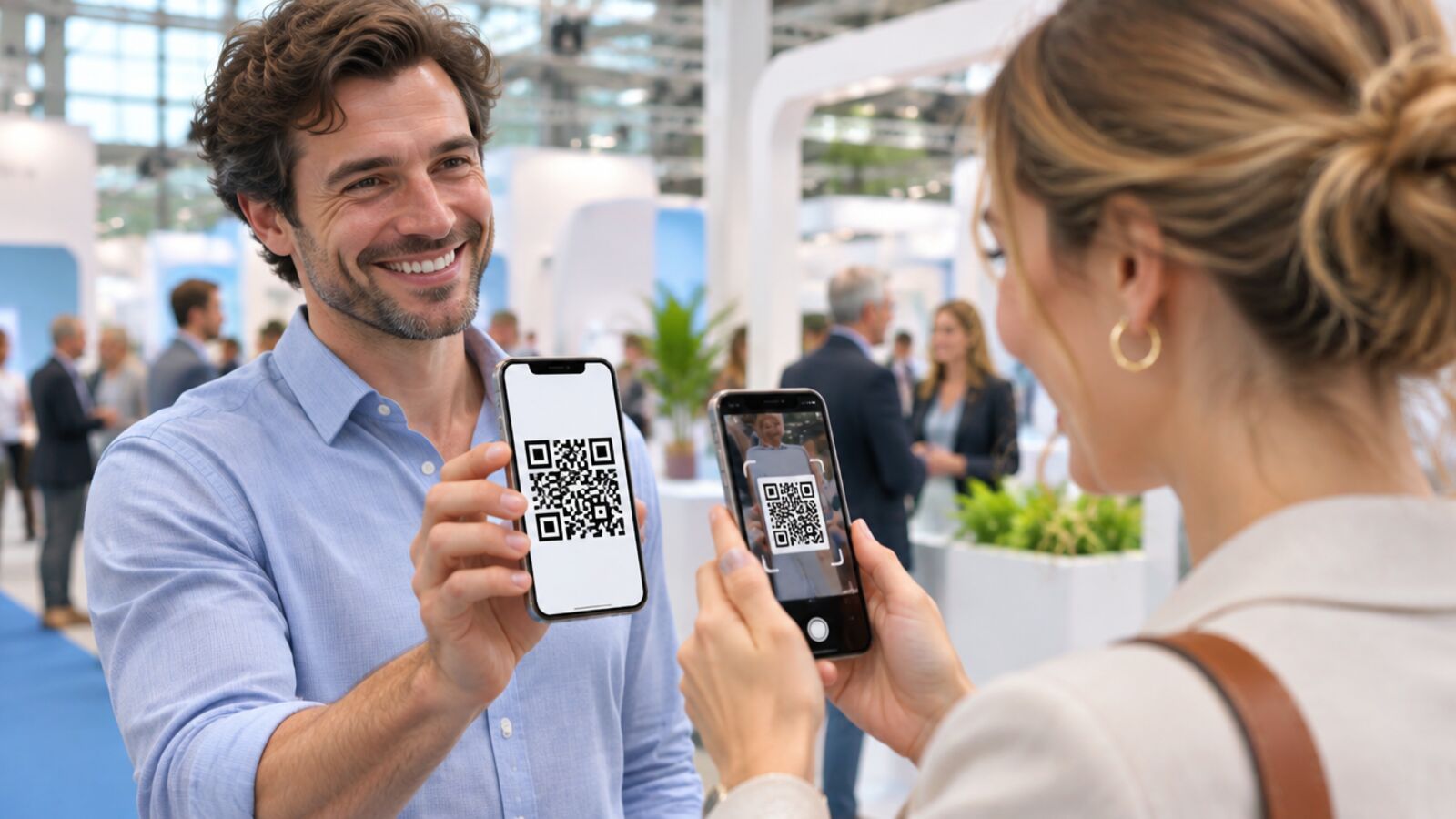
A QR code is the quickest way to pass your details to someone standing in front of you. They point their phone camera at it and your card opens. Every current iPhone and Android phone does this from the camera, with nothing to install.
The two kinds of QR code business card
| Link code | Contact code | |
|---|---|---|
| What is inside | A short web address | Your whole contact, as text |
| When you change jobs or numbers | Edit the page; the code stays the same | Old codes are wrong for ever |
| How dense the pattern is | Sparse, scans quickly | Dense, harder to scan when small |
| What the person sees | Your card, with photo and links | A bare contact form |
| Works offline | No | Yes |
For almost everyone the link code is the better choice, especially on anything printed. A printed contact code is fixed the day it is printed.
How to create one
- Make your card first. See how to make a digital business card.
- Publish it. On Everintro the QR code is created with the card and always points to your page.
- In person, open the full-screen QR view on your phone and hold it steady.
- For print, download the code and place it using the rules below.
Rules for a code that scans first time
- Size. At least 2 cm (0.8 in) wide on a business card. As a rule of thumb, the code should be about a tenth of the distance it will be scanned from, so a code read from one metre away needs to be around 10 cm wide.
- Contrast. Dark code on a light background. Black on white is safest. Light code on dark fails on many phones.
- Quiet zone. Leave a clear margin around the code, about four of its small squares wide. Do not let text or a border touch it.
- No stretching. Keep it square.
- Surface. Avoid placing it across a fold, on a curve, or under glossy lamination that reflects light.
- Test it. Scan the printed proof with two different phones before you order a thousand.
Put a few words beside the code, such as "Scan to save my contact". People scan far more readily when they know what they will get.
Where to use it
- On your phone, full screen, at events and meetings.
- On the back of a paper card, for people who like to take something away.
- On a stand at your trade show table or shop counter.
- On your presentation's last slide.
- In your email signature, as a small image next to the link.
After they scan
Scanning is only half of an introduction. A good card lets the other person send their details back to you, so you are not waiting for them to make the next move. Then write down what they wanted while you still remember; an AI note taker for in-person meetings turns a ten-second voice note into a proper record.
Questions people also ask
Do QR codes on business cards expire?
The pattern itself never expires. A link code works for as long as the page it points to exists. Some free generators route codes through their own short links and switch them off unless you pay, so check before you print.
What is the smallest a QR code can be on a business card?
About 2 cm (0.8 in) wide for a link code. Contact codes hold more data and need to be larger to scan reliably.
Can I put a logo in the middle of my QR code?
A small one, yes. QR codes carry spare data for error correction, so a logo covering a small part of the centre usually still scans. Test it on several phones.
Does the other person need an app to scan it?
No. Current iPhones and Android phones scan QR codes with the built-in camera.